SSD marketing has become a numbers war: Gen 3 drives boast 3,500MB/s, Gen 4 doubles it to 7,000, and Gen 5 doubles it again to 14,000. Impressive on the box — but here is the uncomfortable truth: for most tasks, you cannot feel the difference between any of them.
Here is what the generations actually mean, where the speed shows up (and where it does not), and how to spend your storage budget intelligently.
What "Gen" Means in Ten Seconds
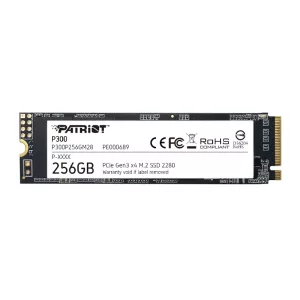
NVMe SSDs plug into PCIe lanes, and each PCIe generation doubles the bandwidth per lane. A four-lane M.2 drive therefore tops out around 3.9GB/s on Gen 3, 7.9GB/s on Gen 4, and 15.8GB/s on Gen 5. The drive's generation only matters if your motherboard's M.2 slot matches it — a Gen 4 drive in a Gen 3 slot politely runs at Gen 3 speed (and vice versa, drives are backward and forward compatible).
Where You Feel the Difference — and Where You Don't
Booting, Apps, Games: Barely
Windows boot, launching Chrome, loading into a match — these are dominated by small random reads, and random performance between a good Gen 3 and a Gen 5 drive differs far less than the sequential numbers suggest. Blind tests consistently show users cannot tell them apart in daily use.
Large File Work: Absolutely
Copying a 100GB video project, moving virtual machine images, working with raw footage — sequential transfers scale almost linearly with generation. If you shift big files daily, Gen 4 or 5 pays for itself in saved minutes.
DirectStorage Gaming: Emerging
Games built on DirectStorage stream assets straight to the GPU and love fast sequential reads. The library using it properly is still small in 2026, but it is the one future-proofing argument for going faster than Gen 3.
The Heat Tax on Gen 5
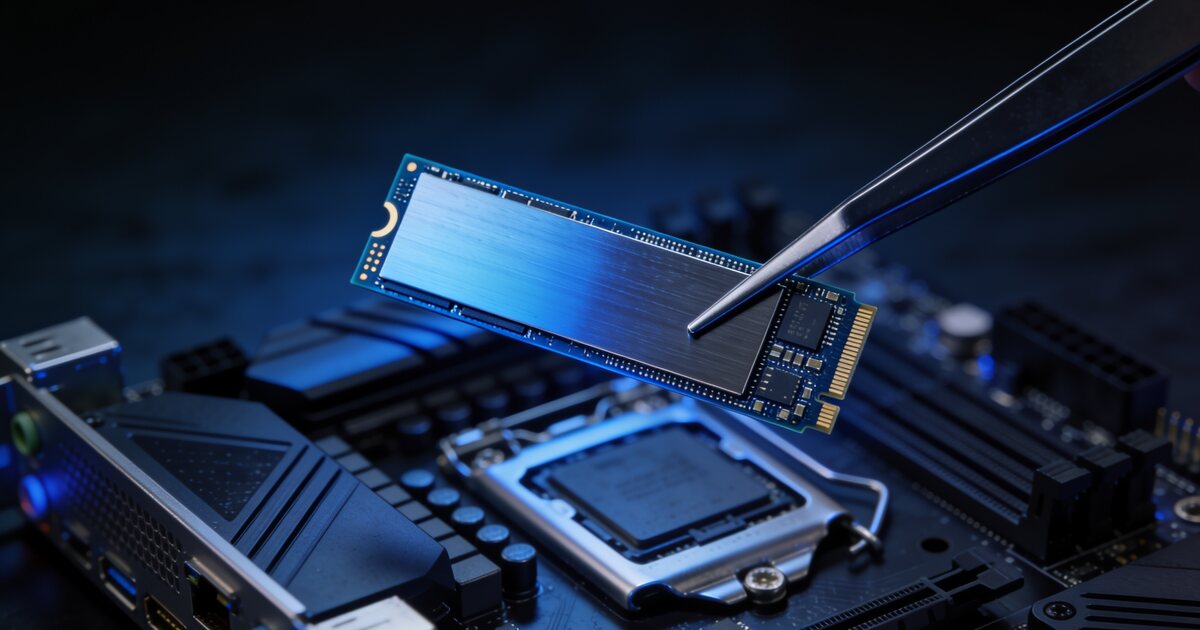
Speed makes heat. Gen 5 controllers run hot enough that most drives need a serious heatsink — some ship with small fans — and will throttle hard in a poorly ventilated case or a laptop. Gen 4 hits a much better balance: fast, cool enough with a motherboard heatsink, and now priced close to Gen 3 per gigabyte.
How to Actually Choose in 2026
- Everyday PC or laptop upgrade: a quality Gen 4 drive (1TB minimum) is the sweet spot — near-Gen 3 pricing, double the headroom.
- Budget build or older motherboard: a good Gen 3 drive remains a superb buy. Spend the savings on capacity: 1TB Gen 3 beats 500GB Gen 4 for real-world happiness.
- Content creation with big files: Gen 4 as the working drive; consider Gen 5 only with a well-cooled desktop and a genuine large-transfer workflow. Enterprise-grade options like Micron's 7450 series exist for sustained-write workloads.
- Capacity rule: whatever generation you pick, do not buy less than 1TB in 2026 — modern games alone eat 100GB+ each.
One more thing: a drive is only as safe as your backups — our SSD vs HDD guide covers where big cheap drives still make sense. Browse current components and storage for live pricing.
Frequently Asked Questions
Will a Gen 4 SSD work in my Gen 3 motherboard?
Yes — it will simply run at Gen 3 speeds. Compatibility goes both ways, so buying a Gen 4 drive for an older board is a legitimate way to future-proof an eventual platform upgrade.
Is Gen 5 worth it for gaming in 2026?
Not yet for most gamers. Game load times differ by seconds at most versus Gen 4, the drives cost meaningfully more per gigabyte, and they demand serious cooling. Put the money into capacity or your graphics card.
How much SSD capacity do I need?
1TB is the practical minimum for a primary drive in 2026; 2TB if you install more than a handful of modern games or work with media files. Running an SSD nearly full also hurts its performance and lifespan.
Do NVMe drives need a heatsink?
Gen 3: rarely. Gen 4: the motherboard's included M.2 heatsink is enough. Gen 5: yes, always — and check your case airflow, because these drives throttle aggressively when hot.