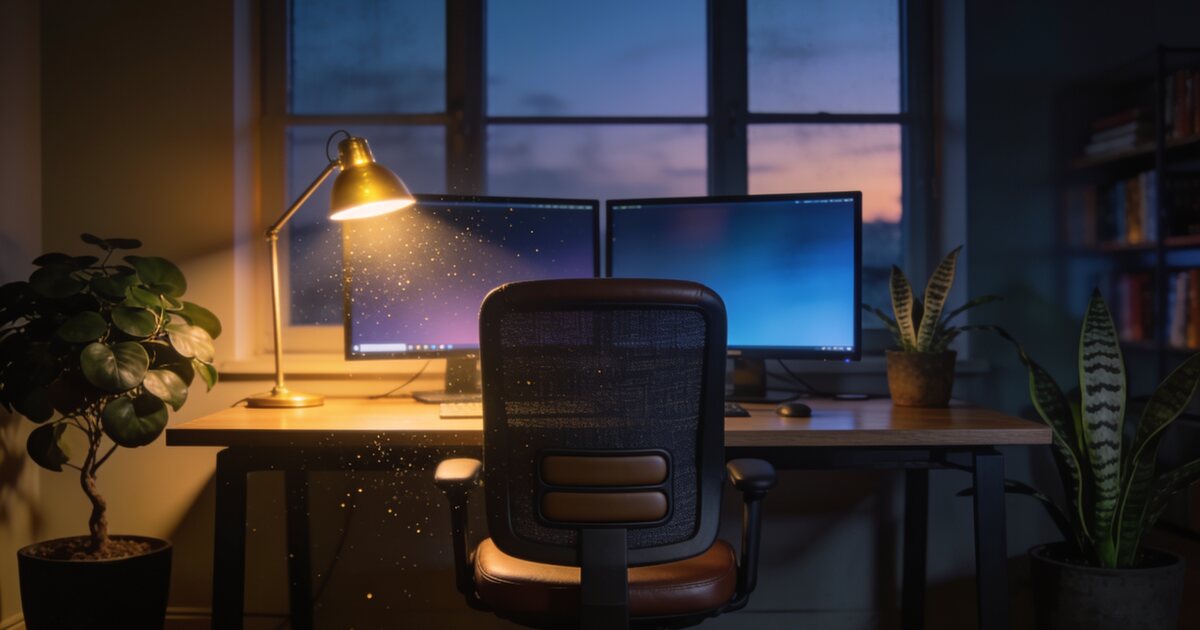
Remote and hybrid work stuck, but most home offices are still a laptop on a dining table — a posture crime with a webcam angle to match. The difference between that and a professional setup is smaller and cheaper than people think, if you buy in the right order.
Here is the prioritised list, from spine-savers to nice-to-haves.
Priority 1: The Monitor (Your Back Will Thank You)
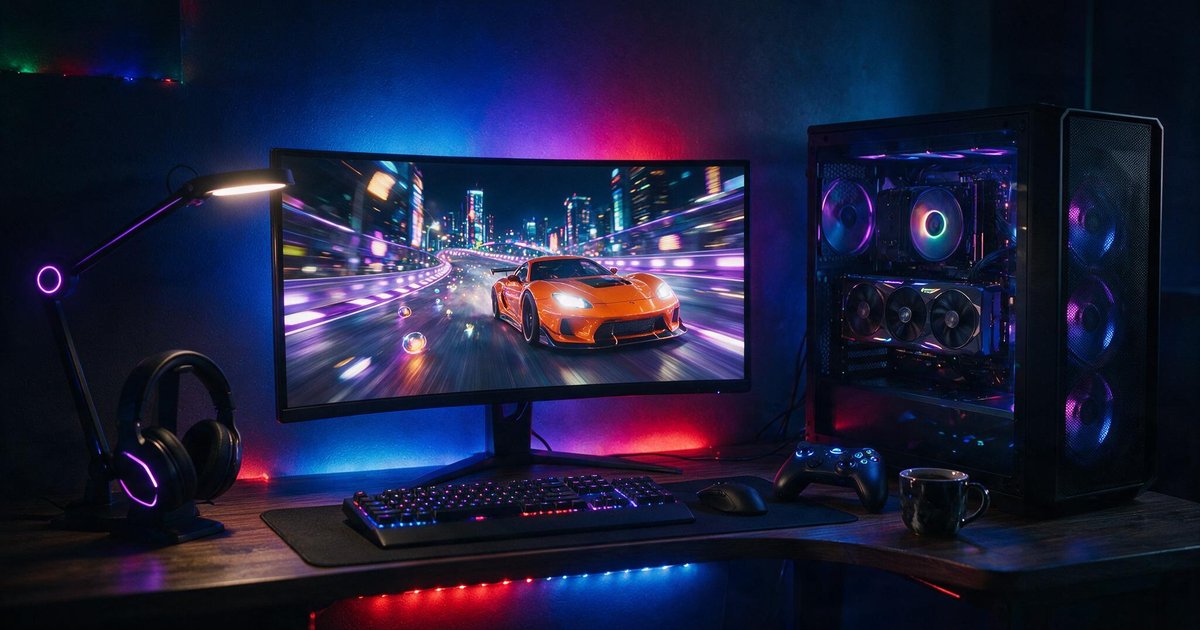
A laptop screen forces you to look down all day. One external monitor at eye height fixes more neck pain than any chair. For office work: 24–27" at FHD or QHD, IPS panel for text clarity — and if it doubles for after-hours gaming, a 144Hz panel costs barely more (our under-R5,000 monitor guide applies double here). Two monitors, or one ultrawide, is the single biggest productivity multiplier for spreadsheet-and-email work.
Priority 2: Keyboard and Mouse (Not the Laptop's)
Once the screen is at eye height, you need input devices at elbow height. Any decent external set transforms comfort; a mechanical board transforms the experience (see our keyboard guide — tactile switches are the office pick). A proper mouse fitted to your hand beats a travel puck for eight-hour days.
Priority 3: Power Continuity (The SA-Specific Layer)
No international setup guide includes this section; every South African one must. Minimum viable: a small UPS on the router so meetings survive the switch, and a laptop as your machine. Full solution: an inverter or power station sized for your desk — the complete playbook is in our load shedding office guide, and current stock lives in power.
Priority 4: The Meeting Kit
Webcam
Laptop webcams remain universally mediocre. An external 1080p webcam mounted at eye level on your new monitor makes you look like the most prepared person on the call for around a thousand rand.
Audio
Echoey laptop audio exhausts everyone else on the call. Either a USB headset (cheapest good fix), earbuds with a decent mic, or a small USB microphone if you refuse to wear things on your head. Test yourself in a recording once — most people are shocked.
Light
Face a window, or put a small soft light behind the webcam. The R300 ring light does more for your on-camera presence than a R3,000 camera pointed at a silhouette.
Priority 5: Connectivity Glue
A USB-C dock or hub turns the laptop into a one-cable docking station: monitors, keyboard, mouse, ethernet, charging — one plug when you sit down. Brands like UGREEN make this category affordable now. Wired ethernet to the router, where possible, removes the last meeting-drop variable (or fix the wireless properly with our Wi-Fi dead zone guide).
The Order to Spend, Summarised
- External monitor (+ stand to eye height)
- External keyboard and mouse
- UPS for the router / power plan for the desk
- Webcam + headset + light
- USB-C dock, cable management, chair upgrades
Everything above is in stock across peripherals and computers — build it in stages and each stage pays for itself in comfort.
Frequently Asked Questions
One big monitor or two smaller ones?
Two 24" screens beat one 27" for multitasking (reference on one, work on the other). One ultrawide beats both for focus work and cable tidiness. For meetings-plus-documents days, dual screens win.
Is a docking station worth it?
If you unplug your laptop more than once a day, absolutely — one cable versus six, every time. Check it supports your monitor setup's resolution and refresh rate before buying.
What is the minimum load shedding setup for a remote worker?
A laptop (its battery is your desk UPS), a small UPS or mini-DC unit keeping the router alive, and a phone hotspot as fallback. That trio keeps you in every meeting for under R2,000.
Do I need a mechanical keyboard for office work?
Need, no — but typing is your job's physical interface, and it is the upgrade users report the most daily satisfaction from. Choose tactile switches so your calls do not feature typewriter sound effects.